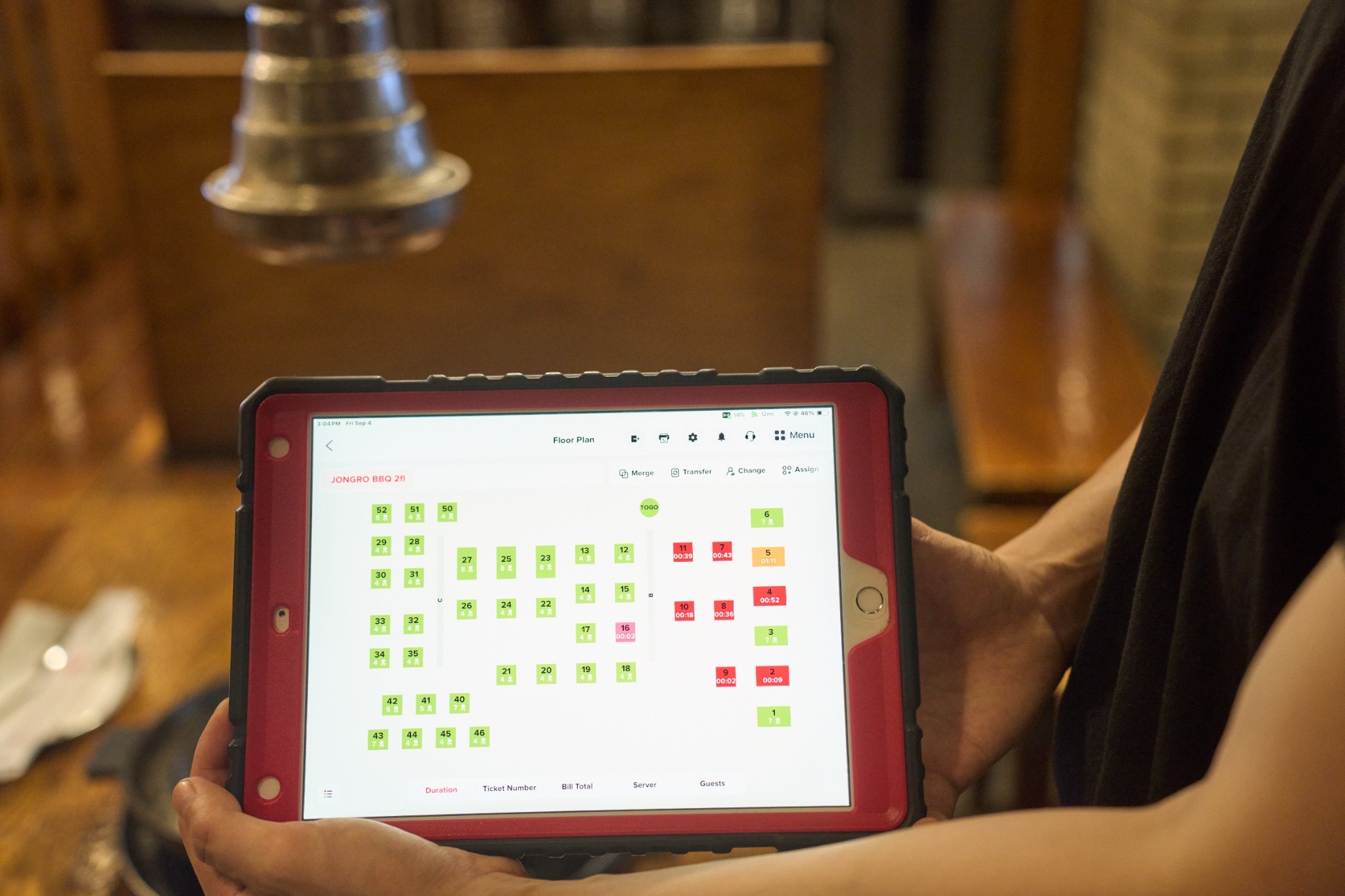
An iPad on a swivel stand has become the default picture of a modern restaurant counter. It is light, familiar to staff, and much cheaper to replace than a traditional terminal. But a restaurant has many work areas besides the counter, including a host stand, a bar, a dining room, a kitchen line, and a back office, and an iPad POS system fits some of those places better than others.
This guide walks through a typical restaurant station by station, showing where an iPad works well on its own and where it needs extra hardware, setup, or a different device altogether. If you are choosing a system, opening a new location, or wondering why your current iPad setup struggles on busy nights, the station view makes the gaps easier to spot.
The front counter is where an iPad POS fits most naturally. Staff ring up orders on a screen they already know how to use, guests can see the order on a customer-facing display, and the whole station takes up a fraction of the space of an old register.
What it needs: a secure stand, a card reader that connects reliably, a receipt printer, and a cash drawer. The iPad itself does not print or hold cash, so those pieces have to be paired and tested together. At a busy counter, a stand that locks the iPad in place matters more than it seems. A tablet that slides off the counter or walks out the door with a guest is a real cost.
Where it needs help: during a rush, one iPad at one counter can become the bottleneck. Quick-service restaurants often add a second register, a self-ordering kiosk, or online ordering to move part of the line elsewhere.
Device security also deserves attention at the counter. A station iPad should open only to the POS app, so staff aren't browsing or changing settings between orders. iPadOS includes a Guided Access feature that locks the screen to a single app, and most POS systems let you set permissions by role, so a cashier can ring up orders while discounts, voids, and refunds require a manager. Set these up before launch rather than after the first unexplained void.
The host stand is a good fit for an iPad. A host can manage reservations, check the waitlist, and see which tables are open, all on one screen. Guests who join the waitlist can be notified by text when their table is ready, so they don't crowd the entrance.
What it needs: a reliable Wi-Fi signal near the door, which is often the weakest spot in a building, and a clear view of the floor plan. If your host stand sits close to the entrance, check the signal there before opening night, not after the first Friday line forms.
Taking orders and payments at the table is one of the main reasons restaurants move to an iPad POS. A server who enters the order at the table sends it straight to the kitchen, without walking back to a terminal. Payment at the table means the guest's card never leaves their sight.
Where it needs help: a full-size iPad is awkward to carry between tables all night, and it can be dropped. Many restaurants pair iPads at fixed stations with smaller handheld devices for servers. Chowbus, for example, offers handheld POS devices with a built-in receipt printer that work alongside its iPad-based POS, so servers can take orders and payments at the table while the iPad stays at the station.
For dine-in restaurants that want guests to order for themselves, iPads can also sit on the table as ordering tablets. That works especially well for all-you-can-eat and hot pot restaurants, where guests order many rounds of small plates.
Bars put any device under stress: spills, wet hands, and crowded counters. An iPad can handle bar orders and open tabs, but it needs a protective case and a mount that keeps it away from the wettest surfaces.
Speed matters most at the bar. Bartenders need to find drinks in a few taps and keep several tabs open at once. When you are evaluating an iPad POS, have your bar staff test the drink menu layout during a busy shift, because a menu that looks clean in a demo can be slow under pressure.
The kitchen is where an iPad POS most clearly needs help. Paper tickets from a printer still work in many kitchens, but a kitchen display system (KDS) shows orders on a screen, tracks how long each one has been waiting, and lets cooks mark items as done. The display is usually a separate screen mounted near the line, built to handle heat and grease.
What matters is how the KDS connects to the POS. Orders entered on the iPad at the counter, at the table, or on a kiosk should appear on the kitchen screen right away, with modifiers clearly shown. Ask whether the system can route items to different stations, such as sending drinks to the bar and noodles to the wok station, and whether cooks can see when an order has been waiting too long.
An iPad POS depends on a network to sync orders, send tickets, and process payments. When Wi-Fi drops on a busy night, what happens next depends on the software, not the iPad. Some systems keep working offline and sync when the connection returns. Others stop accepting orders or card payments until the network is back.
Ask any provider to explain offline behavior in detail: can you keep taking orders, can you accept cards, and what happens to those transactions when the network returns? Chowbus POS runs on iOS-powered Apple devices and includes an offline mode so ordering and payment can continue during an outage. For a deeper look at hardware choices and reliability, this comparison of iPad vs. Android restaurant POS covers durability, long-term cost, and offline performance.
Owners rarely want to run reports on a counter iPad in the middle of service. A cloud-based POS lets you see sales, labor, and menu performance from a computer in the office or a phone at home. That's a strength of iPad systems built on the cloud: the data lives online, not on one device.
Check what reports are available, whether you can export them, and whether you can compare locations side by side if you run more than one. Owners who are not on site every night should also look for a mobile app that shows daily sales and closing reports, so they can catch problems the next morning.
An iPad POS fits most restaurants well at the counter, the host stand, and in the back office. It needs support in the kitchen, at the bar, and on the dining room floor, where handhelds, kitchen displays, and protective mounts fill the gaps. Its biggest weak point is network dependence, which good software addresses with an offline mode.
Before choosing, map your own restaurant station by station and note what each one needs. Then ask providers how their system covers each station and what extra hardware is required. For a broader overview of features and selection criteria, see this guide to the best iPad POS system for restaurants.

Q1: What is an iPad POS system?
An iPad POS system is restaurant point-of-sale software that runs on Apple iPads, paired with hardware such as card readers, receipt printers, cash drawers, and kitchen displays. Most are cloud-based, so data syncs across devices and can be viewed remotely.
Q2: Is an iPad POS good for a full-service restaurant?
Yes, especially when it is paired with handheld devices for tableside service and a kitchen display system. The iPad works well at fixed stations, while smaller devices suit servers moving between tables.
Q3: What hardware do I need with an iPad POS?
Typically a secure stand, a card reader, a receipt printer, and a cash drawer at each counter station, plus kitchen printers or a KDS. Full-service restaurants often add handheld devices for servers.
Q4: Does an iPad POS work without internet?
It depends on the software. Some iPad POS systems include an offline mode that keeps orders and payments running during an outage and syncs afterward, while others stop working until the connection returns.
Q5: iPad POS or Android POS: which is better for restaurants?
Both can work. The bigger difference is usually the software, its offline behavior, and the support behind it rather than the operating system. Compare total cost, durability, and how each system handles your service style.
Q6: How do I plan an iPad POS setup for a new restaurant?
List every station, including counter, host stand, bar, dining room, and kitchen, and write down what each one needs. Then ask providers to quote the hardware for each station and explain how orders move between them.
An iPad POS makes a strong counter and a convenient host stand, and it gives owners access to their data from anywhere. On the dining room floor, behind the bar, and in the kitchen, it works best as part of a larger system with handhelds, kitchen displays, and offline support.
Walk through your restaurant one station at a time and picture a busy Friday night at each one. Wherever an iPad alone would struggle, plan the support it needs before you sign, and your system will hold up when the dining room is full.