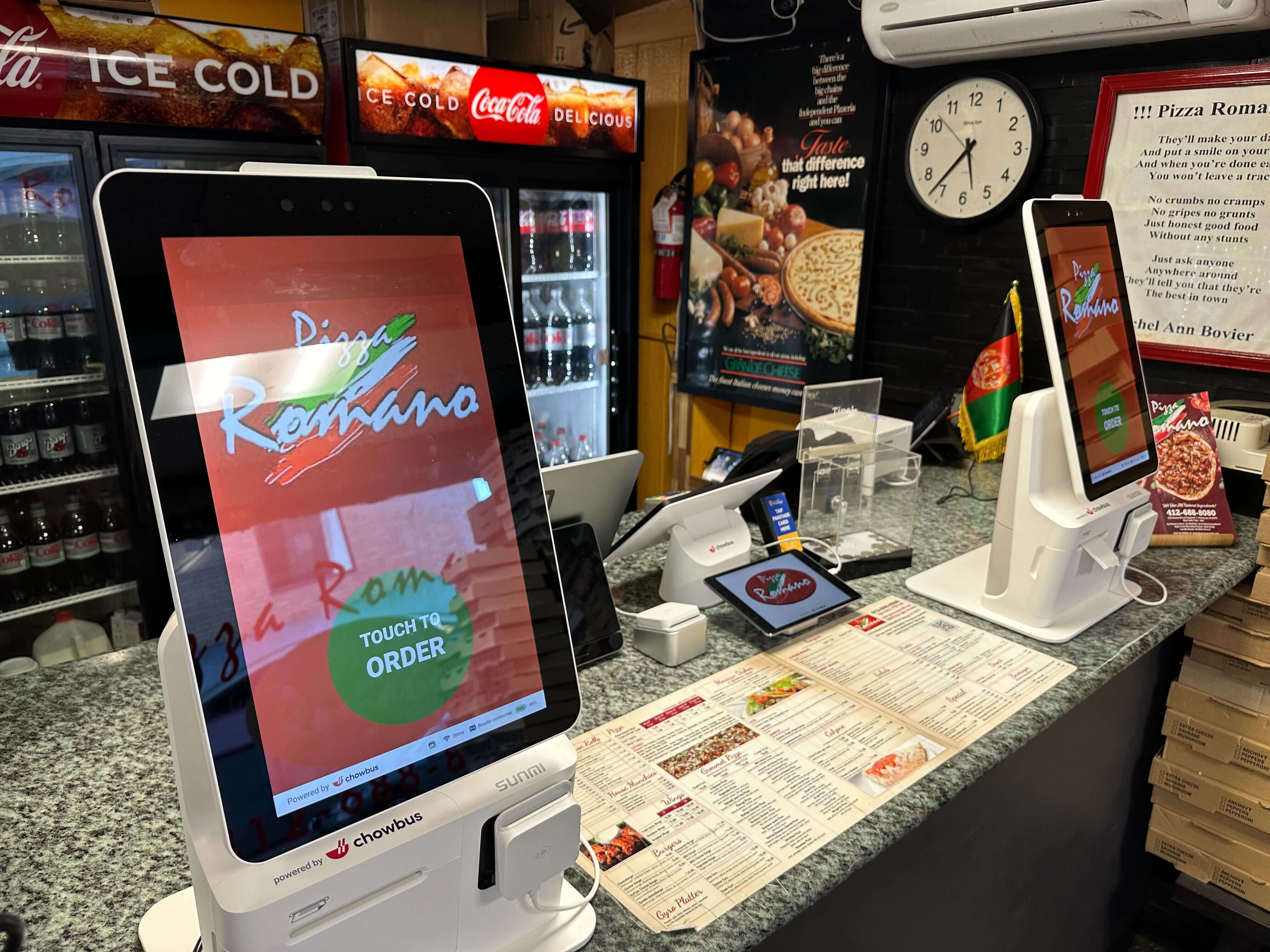
Once a restaurant decides to add self-ordering, the next question is about the hardware. One option is an iPad in a floor stand or countertop enclosure with a card reader attached. The other is a dedicated kiosk: a larger, purpose-built unit with a commercial touchscreen and payment hardware built in. Both take orders. They differ in cost, durability, screen size, and how much work they need after installation.
For most restaurants, the choice comes down to two things: how large the menu is, and how many guests come through at peak. This article compares the two options across the factors that matter in a restaurant, then matches each one to the kinds of restaurants it suits. If you are planning your first kiosk or replacing an early setup that didn't hold up, the comparison will help you know what to ask before you buy.
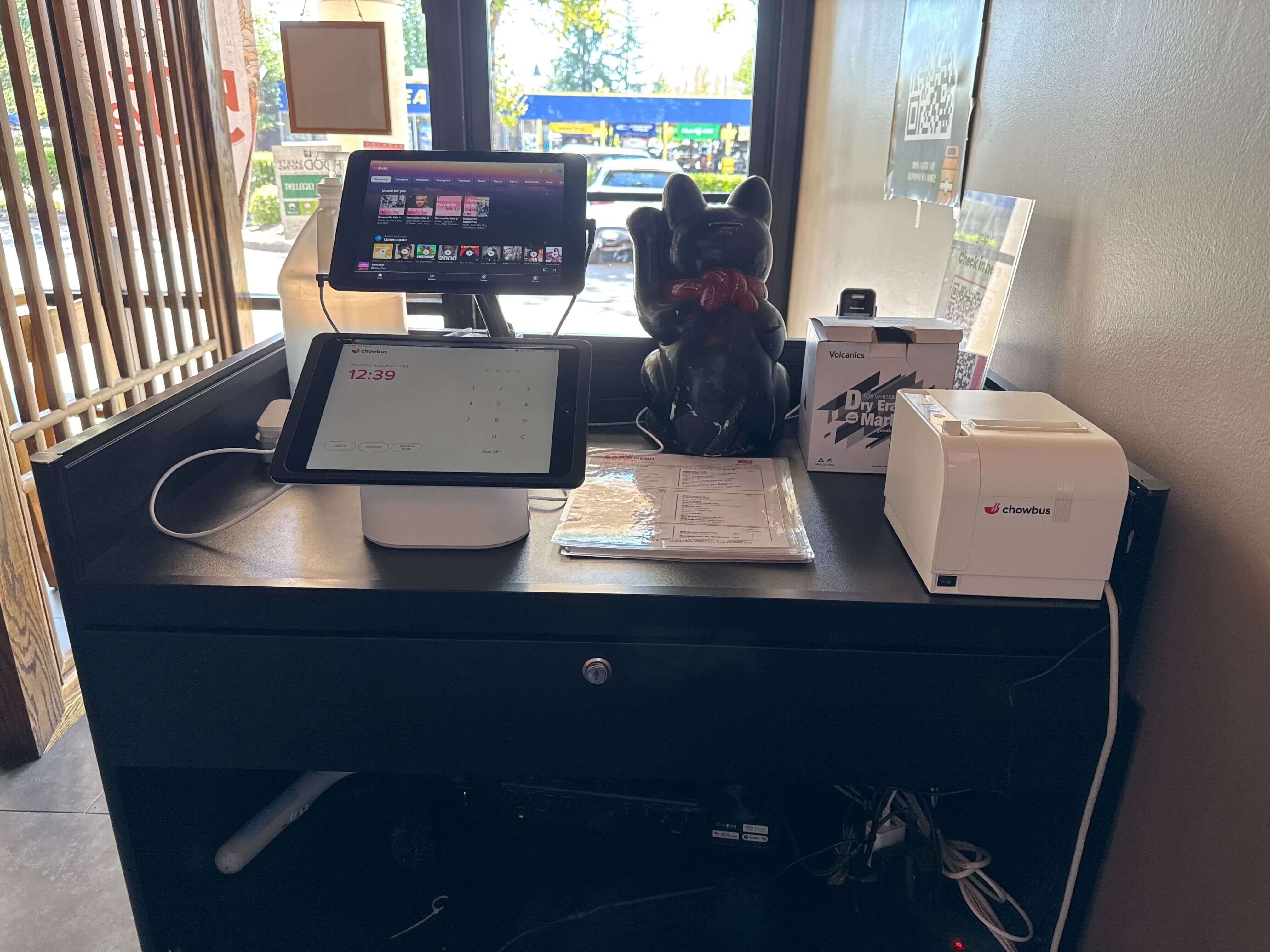
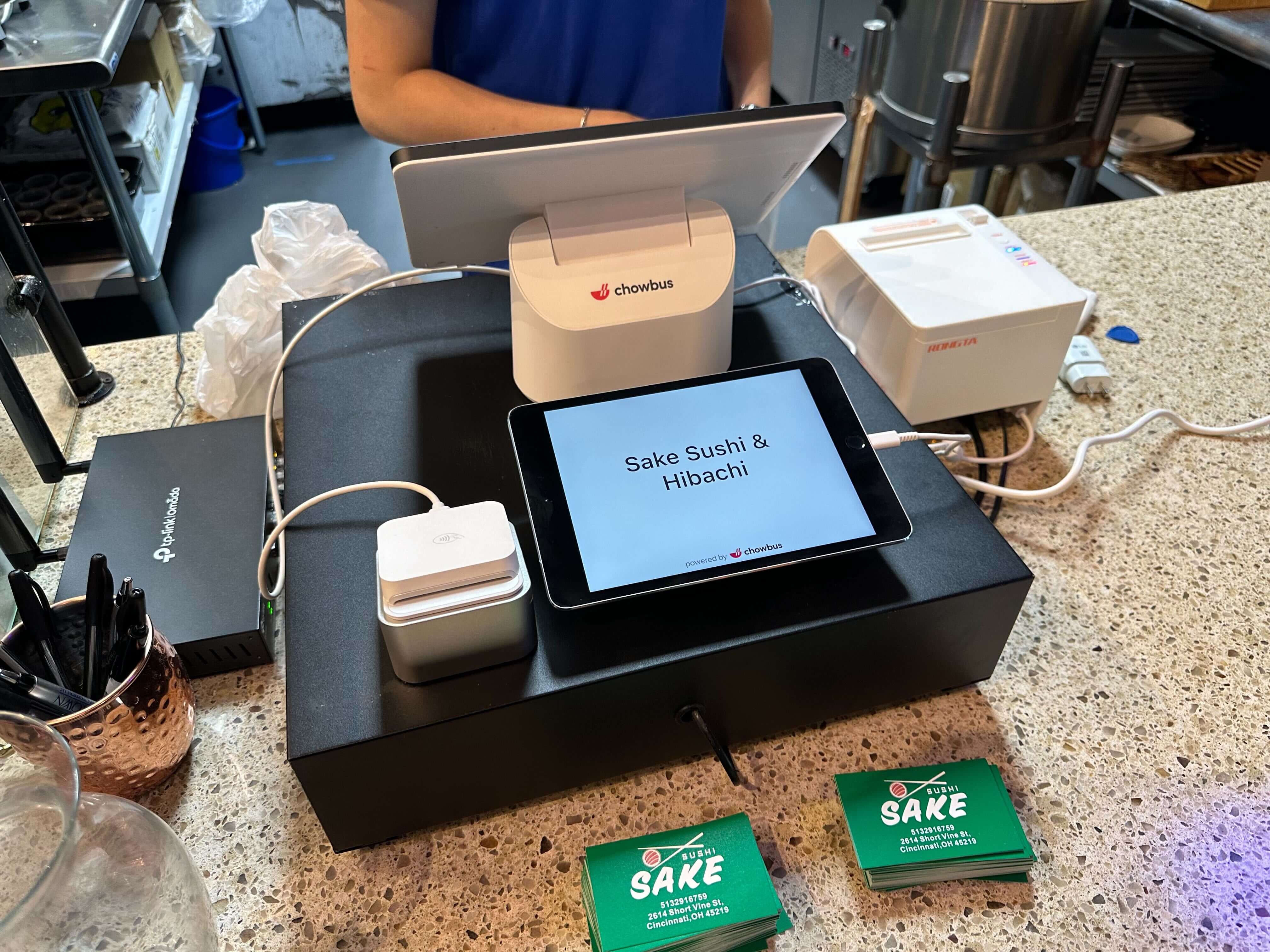
An iPad kiosk uses a standard tablet as the screen. The iPad sits in a locked enclosure on a floor stand, a countertop base, or a wall mount, with a card reader attached to the enclosure or placed nearby. Receipt or order-number printing, if needed, comes from a separate printer. The kiosk software runs as an app locked to the screen.
A dedicated kiosk is a single unit designed for self-service. It usually has a larger touchscreen, often in portrait orientation, a built-in card reader with tap, chip, and mobile wallet support, and sometimes a built-in receipt printer and scanner. It may stand on the floor, sit on a counter, or mount to a wall.
Screen size affects how guests experience your menu. A dedicated kiosk with a large screen can show bigger dish photos, more items at once, and clearer modifier choices. Guests can see the menu from a step back, and people waiting in line can preview it over someone's shoulder.
An iPad screen is much smaller. It works well for short menus, such as a bubble tea shop with a dozen drinks and a list of toppings, or a cafe with a focused menu. For a large menu with many categories and modifiers, a small screen means more scrolling and more taps, which slows down each order and can lead to more abandoned orders during a rush.
Kiosks take more abuse than staff devices. Guests tap hard, lean on the stand, and touch the screen with sticky fingers. A dedicated kiosk is built for that kind of public use, with a commercial-grade screen and a sturdy housing. An iPad in a good enclosure can hold up well too, but it is a consumer device placed in a commercial setting, and heavy daily use wears batteries and ports faster.
Think about what happens when something breaks. Replacing an iPad is quick and fairly inexpensive. You can keep a spare in the office and swap it in minutes. Repairing a dedicated kiosk may require a service visit or shipping the unit back, unless your provider offers replacement terms. Ask both kinds of vendors about warranty length, replacement time, and whether a loaner unit is available.
Security is part of durability. A kiosk sits in public all day, often without staff watching it closely. An iPad kiosk should be locked inside its enclosure and locked to the ordering app, using a feature such as Guided Access or the kiosk software's own lock, so guests cannot exit to the home screen or change settings. Dedicated kiosks usually run a locked-down system by design. With either option, cover the charging port and cables so they cannot be unplugged, and wipe the screen several times a day, since a smudged screen makes taps less accurate and looks neglected to the next guest.
A self-ordering kiosk has to take payment without staff help, so the payment hardware deserves close attention. Dedicated kiosks usually have the card reader built into the unit, positioned for easy reach, with clear prompts for tap, chip, and mobile wallets. An iPad kiosk relies on an attached or nearby reader. That works, but check that the reader is placed where guests naturally reach and that it is secured to the stand.
Printing is the other piece. Many restaurants print an order number or receipt so guests know what to listen for at pickup. Some skip printing and use a pickup screen or text messages instead. Chowbus's kiosk, for example, works with a customer pickup screen and sends SMS notifications when orders are ready. Decide how guests will know their order is ready before choosing hardware, since that decides whether you need a printer at each kiosk.
An iPad kiosk usually costs less upfront. The tablet, enclosure, stand, and card reader together often come to less than a dedicated unit. That lower entry cost makes iPad kiosks popular for small shops testing self-ordering for the first time.
Over several years, the comparison is closer. iPads may need replacing sooner, enclosures may need updating to fit new models, and separate readers and printers add parts that can fail. Dedicated kiosks cost more at the start but may last longer in heavy use. Compare total cost over three years, including hardware, software fees, replacement devices, and service, rather than the purchase price alone.
Kiosks are public-facing, so accessibility matters. Consider screen height and reach for guests using wheelchairs, readable text for older guests, and an option for guests who prefer to order at the counter. Some dedicated kiosks offer accessibility modes that move key buttons lower on the screen. With an iPad kiosk, the stand height and screen position are up to you, so plan them carefully.
Placement matters for both options. Put kiosks where the line forms naturally, leave room for people to stand behind someone ordering, and make sure each unit has power and a strong network connection. Self-ordering stops working if the network drops, so check the signal at each spot before installation.
Whichever hardware you choose, the software running on it decides how well the kiosk works for your restaurant. Orders should go straight to the kitchen display or printer, menu changes should update the kiosk at the same time as the POS and online ordering, and sold-out items should disappear from the screen right away.
Look also for features that help sales. Chowbus's self-ordering kiosk, for instance, lets guests choose options such as sweetness levels and toppings, prompts them to join a membership program during checkout, lets members earn and redeem points, and displays current promotions. For bubble tea shops using a compatible tea machine, it can print drink labels with QR codes for automated preparation. Ask any vendor to show how the kiosk connects to your POS and loyalty program, and test ordering your most complicated item from start to finish.
An iPad kiosk tends to suit small shops with short menus, restaurants testing self-ordering for the first time, counters with limited floor space, and owners who want a low-cost device they can swap quickly. A dedicated kiosk tends to suit busy quick-service restaurants with long lines, larger menus that benefit from big photos, locations with heavy daily traffic, and multi-location brands that want a consistent, durable setup across stores.
Many restaurants start with one or two iPad kiosks, learn how guests use them, and move to dedicated units once self-ordering becomes a large share of orders. If you plan that path, choose software that runs on both, so moving to new hardware doesn't mean retraining guests or rebuilding the menu.

Q1: What is an iPad kiosk for restaurants?
An iPad kiosk is a self-ordering station built from a standard iPad in a locked enclosure on a stand or mount, with a card reader attached or nearby. Guests browse the menu, order, and pay on the tablet.
Q2: Is an iPad kiosk cheaper than a dedicated kiosk?
Usually upfront, yes. Over several years, the gap can narrow because iPads, enclosures, and separate readers may need replacing sooner. Compare total cost over three years, including software and service.
Q3: Are tablet kiosks durable enough for a busy restaurant?
A tablet in a good commercial enclosure can handle steady use, but it is a consumer device in a public setting. For very high traffic, a dedicated kiosk built for public use usually lasts longer. Keeping a spare tablet on hand reduces downtime.
Q4: Which is better for a large menu, an iPad kiosk or a dedicated kiosk?
A dedicated kiosk with a large screen usually works better for large menus with many categories and modifiers, since guests can see more items and photos with less scrolling.
Q5: Do self-ordering kiosks need a receipt printer?
Not always. Some restaurants print order numbers, while others use a pickup screen or text messages to tell guests their order is ready. Decide on the pickup process first, then choose hardware.
Q6: How do I choose kiosk hardware for my restaurant?
Start with your menu size, daily traffic, floor space, and budget. Then ask vendors about durability, payment hardware, warranty and replacement time, and how the kiosk software connects to your POS and kitchen.
The choice between an iPad kiosk and a dedicated kiosk comes down to your menu, your traffic, and how you weigh upfront cost against long-term durability. Small menus and tight budgets point toward iPads. Long lines, large menus, and heavy traffic point toward dedicated units.
Whichever you choose, put most of your attention on the software and how it connects to your kitchen, menu, and loyalty program. Before you buy, stand at a demo unit and order your most complicated item the way a first-time guest would, then watch how quickly it reaches the kitchen.