Printed holiday menus have a short, expensive life. A restaurant designs them in early November, prints a few hundred, finds a typo or a price that needs to change, prints again, and recycles the whole stack the Monday after Thanksgiving. A QR code menu removes most of that cost, but only if it is set up for change. Plenty of restaurants still point their table QR codes at a PDF, which means a holiday menu turns into a new PDF, a new upload, and guests on the old version who never see the update.
This guide is about running a seasonal or holiday set menu on QR the practical way: keeping the same codes on the tables, switching what guests see on the right days, and handling sold-out items and price changes in real time during the busiest week of the year.
The QR code printed on your table tents should never need to change for a holiday. It should open a digital menu that you control, not a fixed file. When the code always points to the same menu page, you can change the content behind it as often as you need, and every table, window sticker, and receipt with that code stays current.
If your QR code currently opens a PDF or an image, the holiday is a good reason to move to a live digital menu or a QR ordering system. A PDF cannot hide a sold-out dish, cannot switch automatically on Thursday morning, and is hard to read on a phone, especially for older guests at a family dinner who are pinching and zooming a menu designed for paper.
Avoid editing your regular menu into a holiday menu and back again. Create the holiday menu as a separate menu with its own items, prices, and descriptions, then schedule it to appear on the days it applies. On Thanksgiving Day, guests scanning the code see the holiday menu; on Friday, they see your regular menu again without anyone staying late on Wednesday to make edits.
Build it a week or two early and preview it on a phone the way a guest would, checking every price and choice before the day arrives. Keeping it separate also protects your regular menu data. Items, modifiers, and photos you spent hours setting up do not get overwritten, and your sales reports can show holiday menu performance separately, which helps you decide what to bring back next year.
A fixed holiday menu reads differently from an à la carte list. On a phone, guests need to understand quickly what the price includes, how many courses there are, and where they get a choice. Put the price per person and the course structure at the top, then list each course with its options. If a course has a choice, such as a protein or a soup, make that choice obvious and required, so the kitchen does not receive a ticket missing a selection.
If you allow add-ons to the set menu, like an extra dish for the table or a drink pairing, place them after the courses so guests are not confused about what is already included. Keep descriptions short and specific. "Roast duck, house plum sauce, steamed buns" helps a guest decide; a long paragraph does not get read on a small screen.
Holiday menus often include dishes guests have not ordered from you before, and photos make those dishes easier to choose. Use real photos of the dish as you will serve it, taken in decent light. A photo that does not match what arrives at the table creates more complaints than having no photo at all.
Mark common allergens and vegetarian options clearly. Holiday tables are larger and more mixed, and a family of twelve is likely to include someone with a dietary restriction. Clear labels on the menu reduce the number of questions servers have to answer at the busiest point of the night.
If your guests read different languages, a digital menu can show the holiday menu in each of them without printing several versions. Chowbus QR menus, for example, support multiple languages and can be edited without reprinting, which matters for Asian restaurants whose holiday crowd includes grandparents who prefer Chinese, Korean, or Vietnamese and grandchildren who read English.
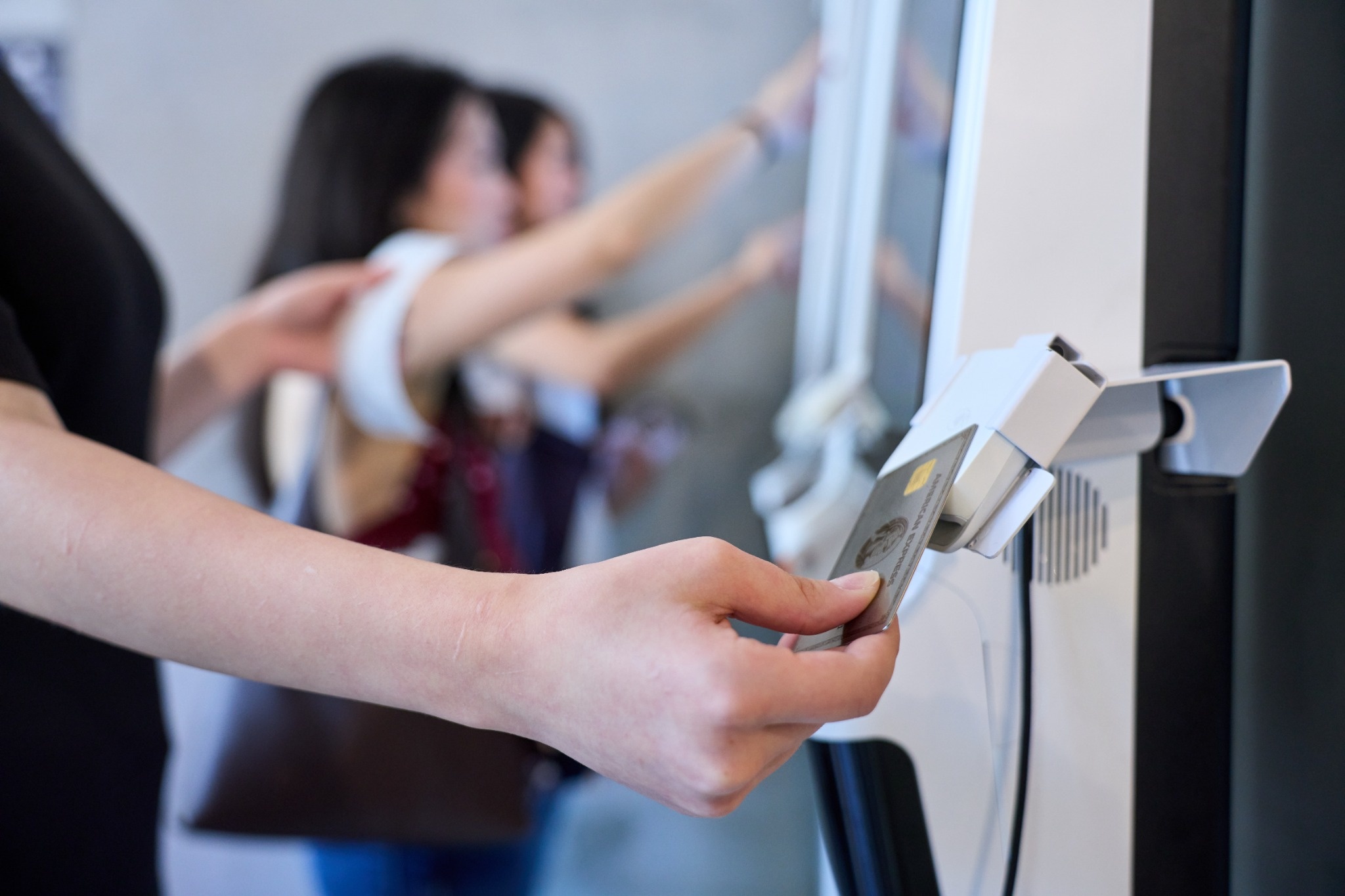
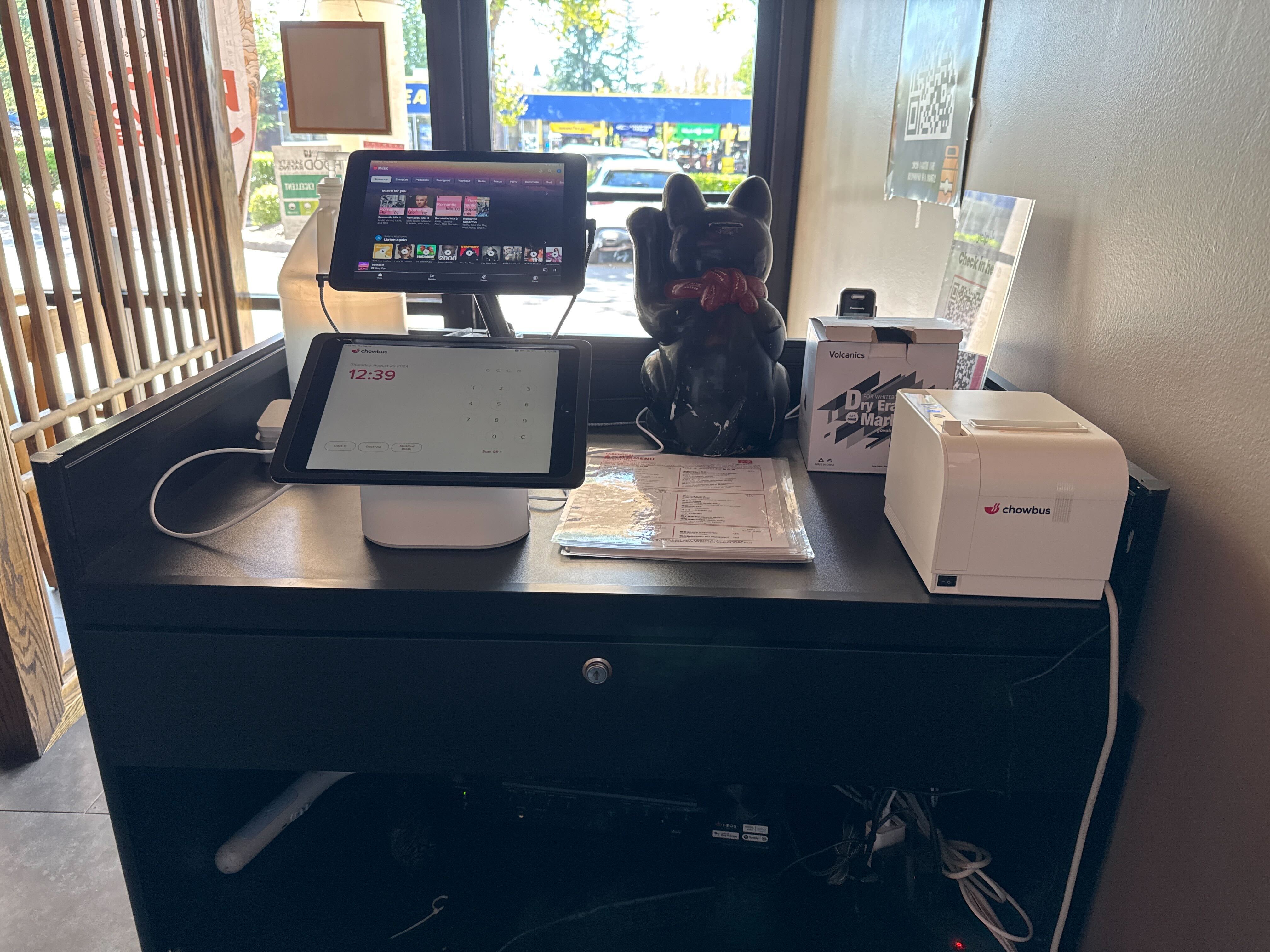
On a holiday, popular dishes sell out, and a paper menu keeps offering them until a server delivers the bad news. With a live digital menu connected to the POS, a manager can mark an item unavailable and it disappears from the QR menu immediately. Guests stop choosing it, servers stop apologizing, and the kitchen stops receiving orders it cannot fill.
Agree in advance who is allowed to mark items sold out, and give the kitchen a quick way to tell that person. One clear owner prevents the common problem where the kitchen runs out but nobody updates the menu for twenty minutes.
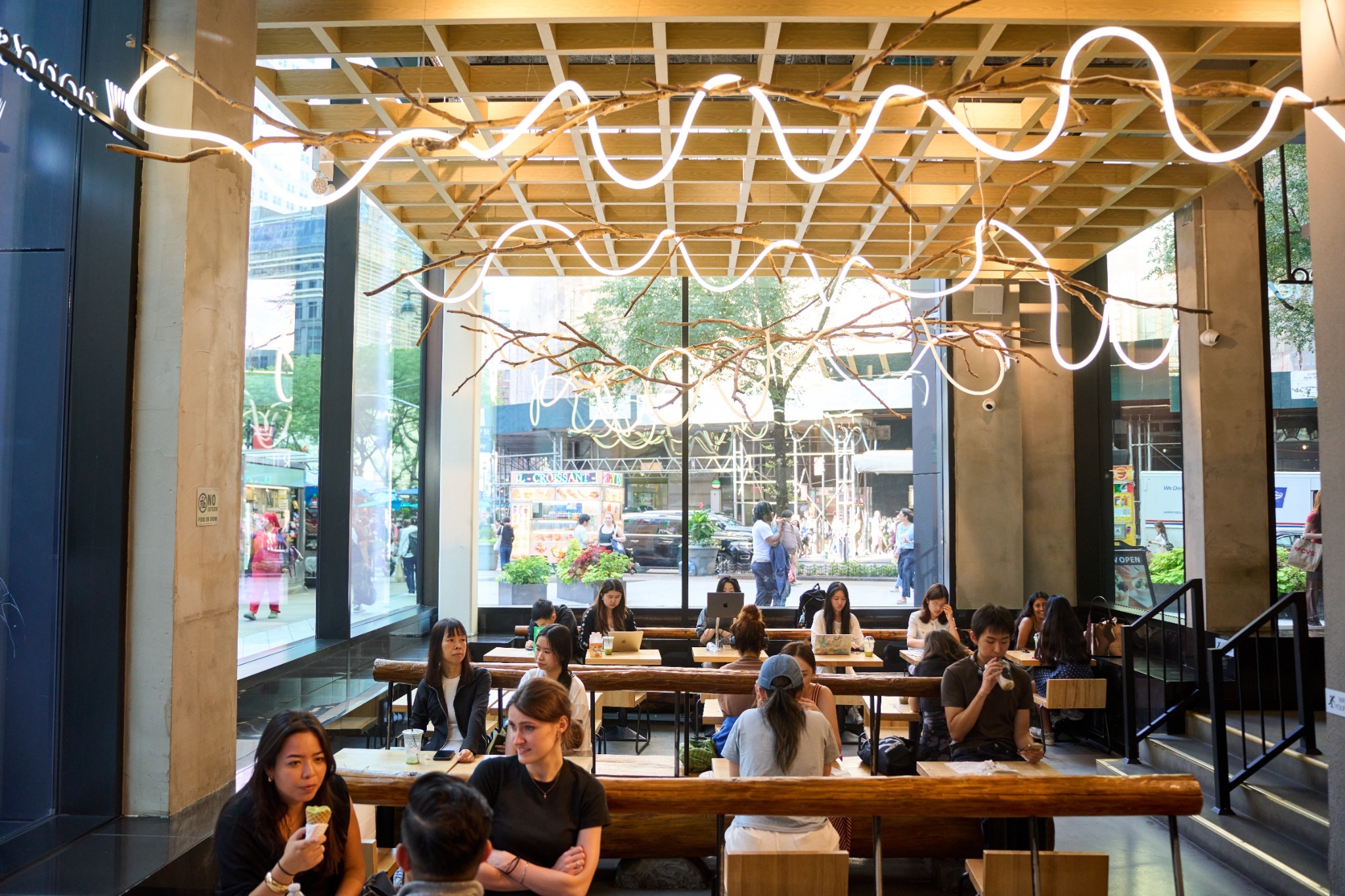
QR ordering changes the rhythm of a holiday seating. When guests order from their phones, a full room of set-menu tables can submit orders within the same few minutes, especially with fixed seatings at 1:00, 3:30, and 6:00. If every course fires the moment it is ordered, the kitchen gets a wall of tickets and the dining room gets appetizers and mains arriving together.
Plan the courses so that only the first course goes to the kitchen right away and later courses are held and fired by the server or the expo when the table is ready. If your system cannot hold courses, have servers check in after the first course and send the next one from the POS. For à la carte holiday days, consider limiting QR ordering to drinks and starters during the first rush and letting servers take mains, which spreads the load across the line.
Talk this through with the kitchen lead before the holiday. Fast ordering helps only if the line can keep up with it.
If holiday pricing differs from your regular menu, put those prices on the holiday menu itself rather than adding a surcharge at the end of the check. Guests accept a higher holiday price when they see it before ordering; they object when it appears as an unexplained line on the bill. If you do add a service charge for large parties, show it clearly on the menu and on the booking confirmation.
Make sure every table has a working code that is easy to see, especially if the holiday layout adds extra tables. Test each code with a phone the day before; a damaged or covered sticker is the most common reason a guest says the menu "does not work." Keep a small number of printed copies of the holiday menu for guests who prefer paper or whose phones are low on battery, which happens more often at a long family dinner than you might expect.
For more on setting up QR menus in general, see how to create a QR code menu for a restaurant, and for the ordering side, the Chowbus QR code ordering page.

Q1: What is a QR code menu?
A QR code menu is a digital menu guests open by scanning a code at the table with their phone camera. A live QR menu can be edited at any time, while a QR code that points to a PDF only shows a fixed file.
Q2: Do I need new QR codes for a holiday menu?
No, if the code points to a digital menu you control. Keep the same code on the tables and change or schedule the menu content behind it, so every existing table tent and sticker shows the holiday menu on the right days.
Q3: How do I switch a QR menu to a holiday set menu for one day?
Build the holiday menu as a separate menu and schedule it to appear only on the holiday. Guests scanning the same code will see the holiday menu that day and your regular menu again the next day.
Q4: Is a QR menu better than a printed holiday menu?
A live QR menu avoids reprinting for typos, price changes, and sold-out items, and can show several languages. Keep a few printed copies for guests who prefer paper, but use the digital menu as the main source.
Q5: How do sold-out items disappear from a QR menu?
When the QR menu is connected to the POS, marking an item unavailable removes it from the menu right away. Decide in advance who on the team is responsible for doing this during service.
Q6: What should I check the day before the holiday?
Scan every table code with a phone, confirm the holiday menu is scheduled for the right date and time, check prices and course choices, and make sure printed backup copies are ready.
A holiday menu on QR works best when the code stays the same and the menu behind it changes on schedule. Build the holiday menu separately, make set-menu choices clear on a small screen, keep sold-out items and prices current in real time, and test every table code before the doors open. Guests get a menu that matches what the kitchen can serve, and you skip the stack of reprinted menus heading for the recycling bin.