Kiosk software demos usually happen at two in the afternoon, with one salesperson, a clean menu, and nobody waiting. Quick-service restaurants buy kiosks for twelve-fifteen on a Friday, when six people are lined up, the fryer is backed up, and half the menu modifiers are in play. Software that looks identical in the demo can behave very differently at that hour.
The best iPad kiosk software for a quick-service restaurant in 2026 is the one that holds up during your rush: fast to order on, connected to your kitchen and pickup flow, and easy to change when an item runs out. This guide turns that into a set of tests you can run during any demo, so you compare products on the moments that decide whether guests use the kiosk or walk back to the counter.
Before you look at any product, write down what your rush actually looks like. How many orders come in during the busiest fifteen minutes? What share are combos? How many guests customize, and how many options do they usually change? Which items sell out first? Do most guests eat in, take out, or both?
Those answers become the test script. A bubble tea shop where nearly every drink has sweetness, ice, and topping choices needs very different strengths from a noodle counter where most orders are a bowl and a drink. Bring your three most common orders and your single most complicated one to every demo. Ask the salesperson to hand you the iPad and stay quiet while you order them.
Count the taps from the welcome screen to payment for each of your common orders. Then count them for the complicated one. On a quick-service kiosk, every extra screen adds seconds, and seconds multiply across a line of guests.
Look at how modifiers are presented. Good kiosk software shows required choices clearly, such as size or base, and keeps optional ones from blocking the path to checkout. It remembers sensible defaults so a guest who wants the standard version can move on quickly. It also shows the running price as options are added, which prevents surprise at payment and reduces abandoned orders.
Watch the screen layout on the actual iPad size you plan to use. A menu built for a large kiosk screen can feel cramped on a tablet, with smaller photos and more scrolling. If you plan to use iPads, ask to see the menu on an iPad, not on a large demo unit.
Place your complicated order on the kiosk and ask to see the result on the kitchen display or printed ticket. This is where many kiosk setups fall apart. A guest who chose half sugar, less ice, and two toppings expects to receive exactly that, and the person making the drink needs to read it in a glance.
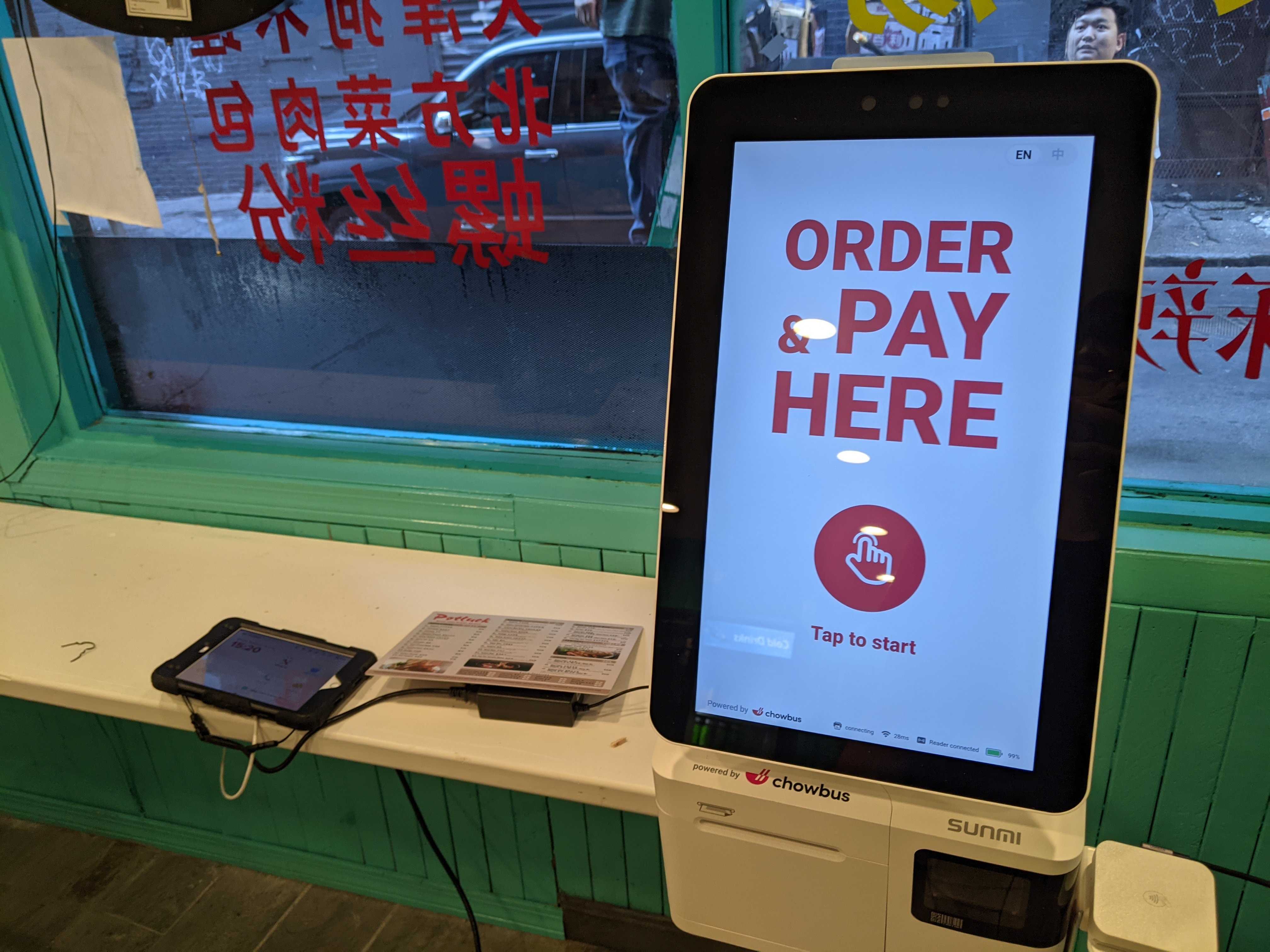
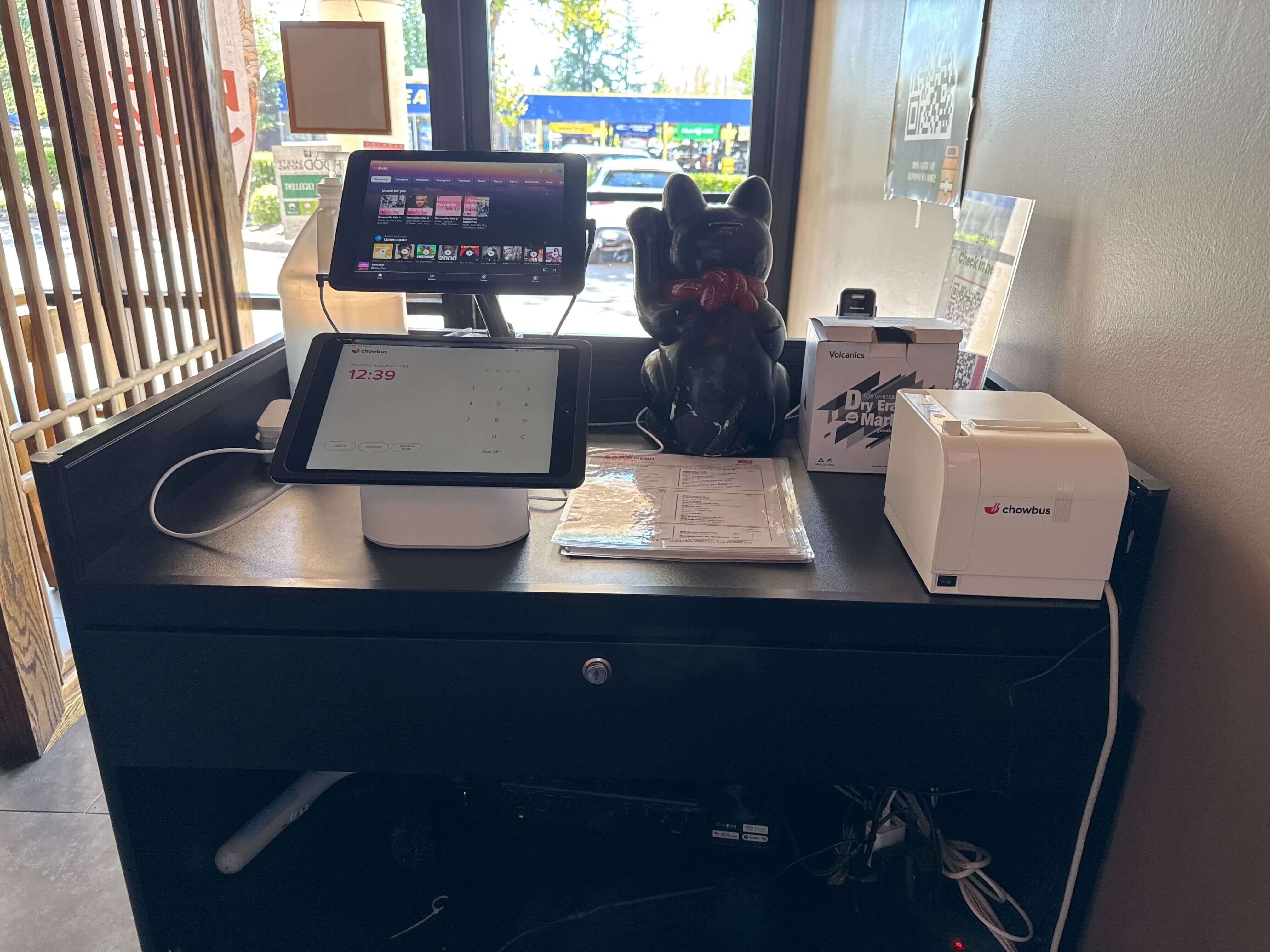
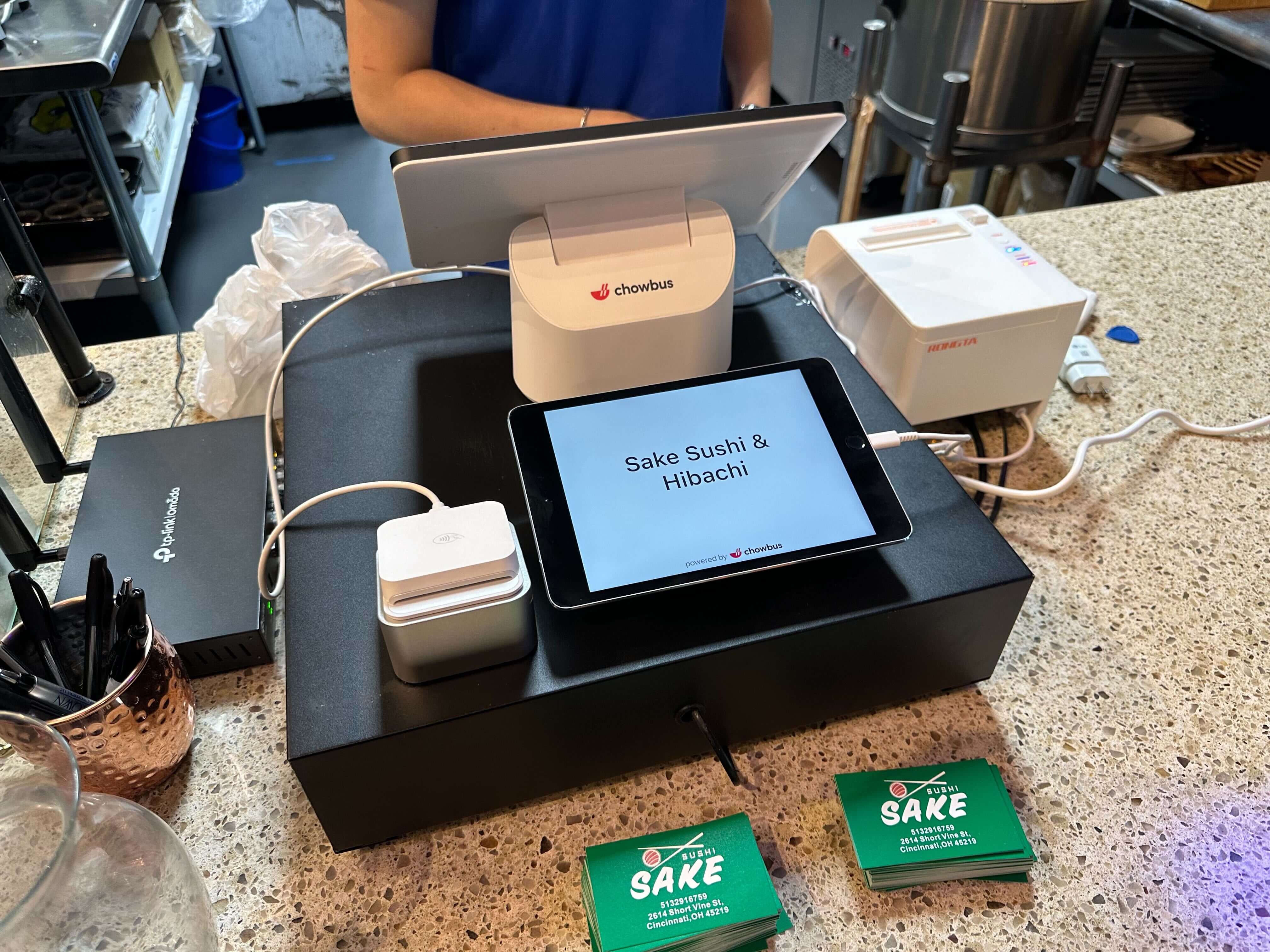
Check that modifiers appear under the right item, that order type is clear, and that the order number on the ticket matches what the guest sees. Ask whether kiosk orders go straight to the kitchen display or printer without anyone re-entering them. Chowbus's self-ordering kiosk, for example, sends orders directly to the kitchen display screen or printer, and bubble tea shops connected to a compatible tea machine can print drink labels with QR codes for automated preparation.
Ask the salesperson to mark an item as sold out on the POS, then refresh the kiosk. How long does it take to disappear? Does it also disappear from online ordering and delivery menus? What does a guest see if they already have it in their cart?
In a quick-service restaurant, items run out during the rush, which is exactly when nobody has time to update three systems. Kiosk software that shares one menu with the POS lets a single change reach every channel. Software that keeps its own separate menu means a second update, and the second update is the one that gets forgotten.
A kiosk has to take payment without staff. Run a card tap, a chip insert, and a phone wallet payment. Try declining a card, if the demo allows it, and see what the screen tells the guest. Ask how tips are handled at a counter-service kiosk, if you accept them, and whether the tip prompt can be turned off or adjusted.
Ask what happens to guests who want to pay cash. Some restaurants keep one staffed register for cash. Others let guests order on the kiosk and choose to pay at the counter. Either approach works if the software supports it cleanly and the order still reaches the kitchen at the right moment.
Quick-service kiosks speed up ordering, which often moves the crowd to the pickup counter. Ask how guests learn their order is ready. Options include printed order numbers, a pickup display screen, and text messages. Chowbus's kiosk works with a customer pickup screen and sends SMS notifications when orders are ready, so guests can wait away from the counter.
Test the full loop in the demo: place the order, mark it ready in the kitchen view, and watch what the guest sees. If the pickup step is clumsy, guests will crowd the counter and ask staff about their order, which cancels much of the time the kiosk saved.
The kiosk is a good moment to bring guests into a loyalty program, because they are already holding a screen and entering their order. Ask how sign-up works at checkout, whether returning members can earn and redeem points on the kiosk, and whether points are shared with the counter, online ordering, and other locations.
Upsell prompts deserve a careful look. A single, relevant suggestion, such as adding a drink to a meal, can raise the average ticket. A string of pop-ups slows guests down during a rush. Ask whether prompts can be limited, scheduled, or turned off at peak times.
Ask the salesperson to show you how to add a new item with a photo, change a price, and schedule a limited-time offer. Do it yourself while they watch. If the steps require a support ticket or a separate kiosk portal, menu changes will happen less often than they should. Ask, too, who on your team can make those changes. A shift lead should be able to mark an item sold out, while price changes and new items usually belong to a manager, and good software lets you set those permissions by role.
Also ask how the kiosk behaves when the internet is slow or down. Kiosk ordering usually depends on a connection, so learn what guests will see and how staff should redirect them to the counter. Knowing the answer before your first outage makes the moment far less stressful.
After each demo, score the software from one to five on each test: taps to order, kitchen ticket, sold-out sync, payment, pickup, loyalty, and menu changes. Weight the scores by what matters most in your restaurant. A bubble tea shop might weight modifiers and kitchen tickets heavily, while a busy lunch counter might weight payment speed and pickup. The product with the highest weighted score, at a cost you can live with over three years, is your best choice. For a broader look at hardware options, see this comparison of an iPad kiosk and a dedicated kiosk.

Q1: What is iPad kiosk software for quick-service restaurants?
It is self-ordering software that runs on an iPad in a stand or enclosure, letting guests browse the menu, customize items, and pay without a cashier. In quick-service restaurants, it connects to the POS, kitchen display or printer, and pickup flow.
Q2: How do I choose the best iPad kiosk software for my restaurant?
Bring your most common and most complicated orders to each demo and test them yourself. Count the taps, check the kitchen ticket, mark an item sold out, run several payment types, and test pickup notifications and menu changes.
Q3: Is iPad kiosk software better than a dedicated food ordering kiosk?
iPad setups cost less upfront and suit shorter menus and smaller counters. Dedicated food ordering kiosks with larger screens tend to suit large menus and heavy traffic. The software behind either one matters more for daily operations.
Q4: What does kiosk software cost for a quick-service restaurant?
Pricing varies by provider and usually combines hardware, software subscription, and payment processing. Compare total cost over three years, including any per-device fees and replacement hardware, rather than the monthly software price alone.
Q5: Can kiosk software handle complex drink orders for bubble tea shops?
Good kiosk software can, with clear choices for sweetness, ice, and toppings and readable tickets for staff. Some systems also connect to tea machines or print drink labels, so test your most complicated drink in the demo.
Q6: What should I do after choosing kiosk software?
Plan the rollout and the pickup flow before launch, train staff to help first-time users, and review kiosk sales data after the first month to adjust the menu layout and prompts.
Choosing kiosk software for a quick-service restaurant comes down to how it behaves during the busiest fifteen minutes of your day. Speed of ordering, accuracy in the kitchen, instant sold-out updates, and a clear pickup step decide whether guests rely on the kiosk or avoid it.
Take your real orders to every demo, run the same tests each time, and score what you see. The software that handles your rush without extra work from staff will serve you well long after the demo screen is turned off.